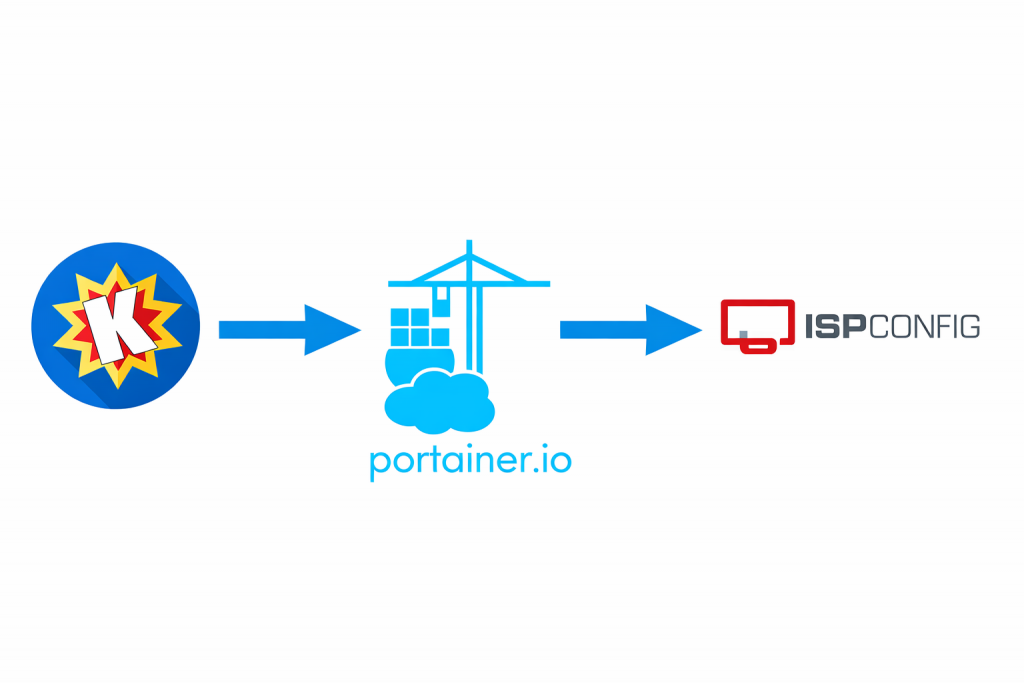
To serve a Komga Portainer instance (or any other portainer APP) using ISPConfig 3, you need to set up a reverse proxy in ISPConfig that directs external web traffic to the internal port where your Docker container is running. The general process involves deploying Komga in Docker/Portainer and then configuring ISPConfig to act as the web server proxy.
Prerequisites
- A server with ISPConfig 3 installed (preferably on a standard VM, as Docker within the main ISPConfig server is not officially recommended).
- Docker and Portainer installed on the same or a separate machine/VM (in my particular case I have 2 separate servers, 1 for ISPConfig to provide traditional web hosting, and another server to host Apps in Docker managed through Portainer.
- Komga deployed as a Docker container, accessible via a specific internal IP and port (e.g.,
http://localhost:25600orhttp://[internal_IP]:25600).
Step 1: Deploy Komga via Portainer
Ensure Komga is running within Docker and its web interface is accessible locally.
- Log in to Portainer and navigate to your environment.
- Deploy Komga, typically using a Docker Compose stack for easy configuration and persistence.
- Map an internal container port (default 25600) to an external host port (e.g., 25600 or any other free port).
- Bind necessary volumes for configuration and data (e.g.,
/path/to/komga/config:/configand/path/to/your/manga:/data).
- Verify you can access Komga directly using the server’s IP address and the mapped port (e.g.,
http://your_server_ip:25600).
Step 2: Configure a Website in ISPConfig 3
You will use ISPConfig to manage the public FQDN (Fully Qualified Domain Name) for your Komga service.
- Log in to your ISPConfig dashboard.
- Go to the Sites section and create a new website/subdomain (e.g.,
komga.yourdomain.com). - Ensure the domain’s DNS records (A/AAAA) point to your ISPConfig server’s public IP address.
Step 3: Set up a Reverse Proxy in ISPConfig 3 (Apache/Nginx)
ISPConfig needs to be told to forward requests for komga.yourdomain.com to the internal Komga Docker service. This usually involves adding custom configuration directives in the site’s options tab.
For Apache
Add the following directives in the Options tab of your ISPConfig website configuration to proxy requests:
apache
ProxyPass "/" "http://localhost:25600/"
ProxyPassReverse "/" "http://localhost:25600/"
ProxyPass /.well-known/acme/ !
localhost:25600: Replace with the actual IP and port where your Komga container is accessible from the host running ISPConfig.ProxyPass /.well-known/acme/ !: This is crucial to ensure Let’s Encrypt SSL certificate requests are handled by ISPConfig itself, not proxied to Komga.
For Nginx
If you are using Nginx as your web server (configured in the “Server” section of the site settings), the configuration would be similar, using proxy_pass directives.
Step 4: Secure with SSL (Let’s Encrypt)
ISPConfig can handle SSL for the public-facing domain, securing the connection between the user’s browser and the ISPConfig server.
- In the ISPConfig site settings for
komga.yourdomain.com, navigate to the SSL tab. - Enable SSL and Let’s Encrypt SSL. ISPConfig will automatically request and manage the certificate.
- Save the settings and wait for the configuration to be applied (this may take a minute).
Step 5: Access and Initial Komga Setup
You can now access your Komga instance via the secure FQDN you configured.
- Open a web browser and navigate to
https://komga.yourdomain.com. - Follow the prompts to create an admin user and set up your libraries. Your data folders should be correctly mapped via your Portainer configuration.